> ## Documentation Index
> Fetch the complete documentation index at: https://aminiai.mintlify.site/llms.txt
> Use this file to discover all available pages before exploring further.

# Adding Credits

> How to use add credits to your wallet

export const currentRelease = {
  versionNumber: 'Amini Lite v1.0',
  releaseDate: 'September 20, 2024'
};

export const versioning = 'versioning';

<Note>The current release available from the Amini Data Platform is **{currentRelease.versionNumber}** released on **{currentRelease.releaseDate}**.</Note>

# Getting Started

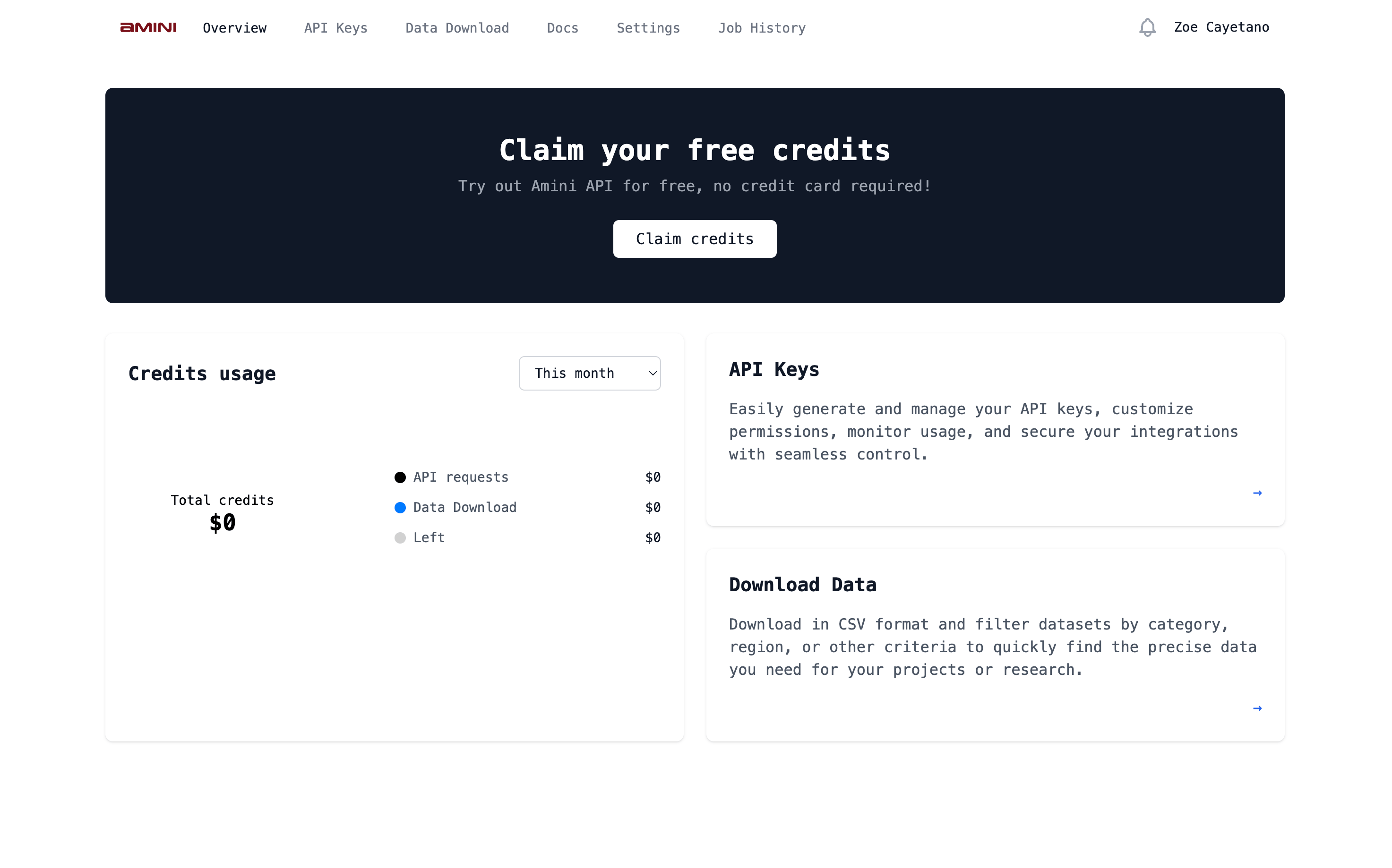
**Step 1:** Go to [lite.amini.ai](https://lite.amini.ai/) to get started by creating an account and adding credits to your balance.
<img src="https://mintcdn.com/aminiai/q8F0l5roisp898sq/images/create-wallet/create-wallet-screen1.png?fit=max&auto=format&n=q8F0l5roisp898sq&q=85&s=b1fe50fcb4e820a74ee76cd0f8d65b66" alt="alt text" width="2946" height="1838" data-path="images/create-wallet/create-wallet-screen1.png" />

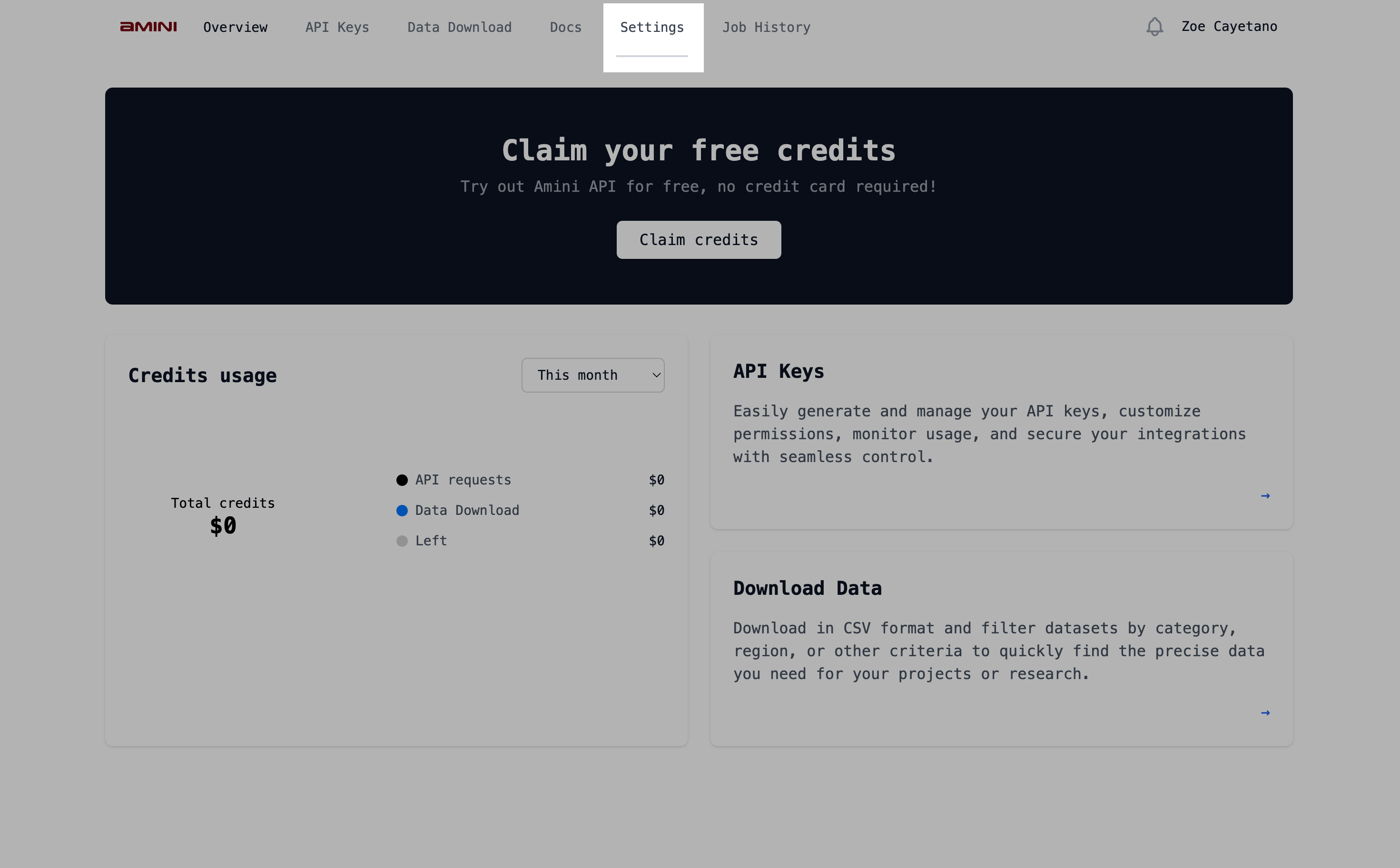
**Step 2:** Go to 'Settings' on the top navigation bar.
<img src="https://mintcdn.com/aminiai/q8F0l5roisp898sq/images/create-wallet/create-wallet-screen2.png?fit=max&auto=format&n=q8F0l5roisp898sq&q=85&s=0c07ffaa81f665389c11268ac32ceffc" alt="alt text" width="2942" height="1824" data-path="images/create-wallet/create-wallet-screen2.png" />

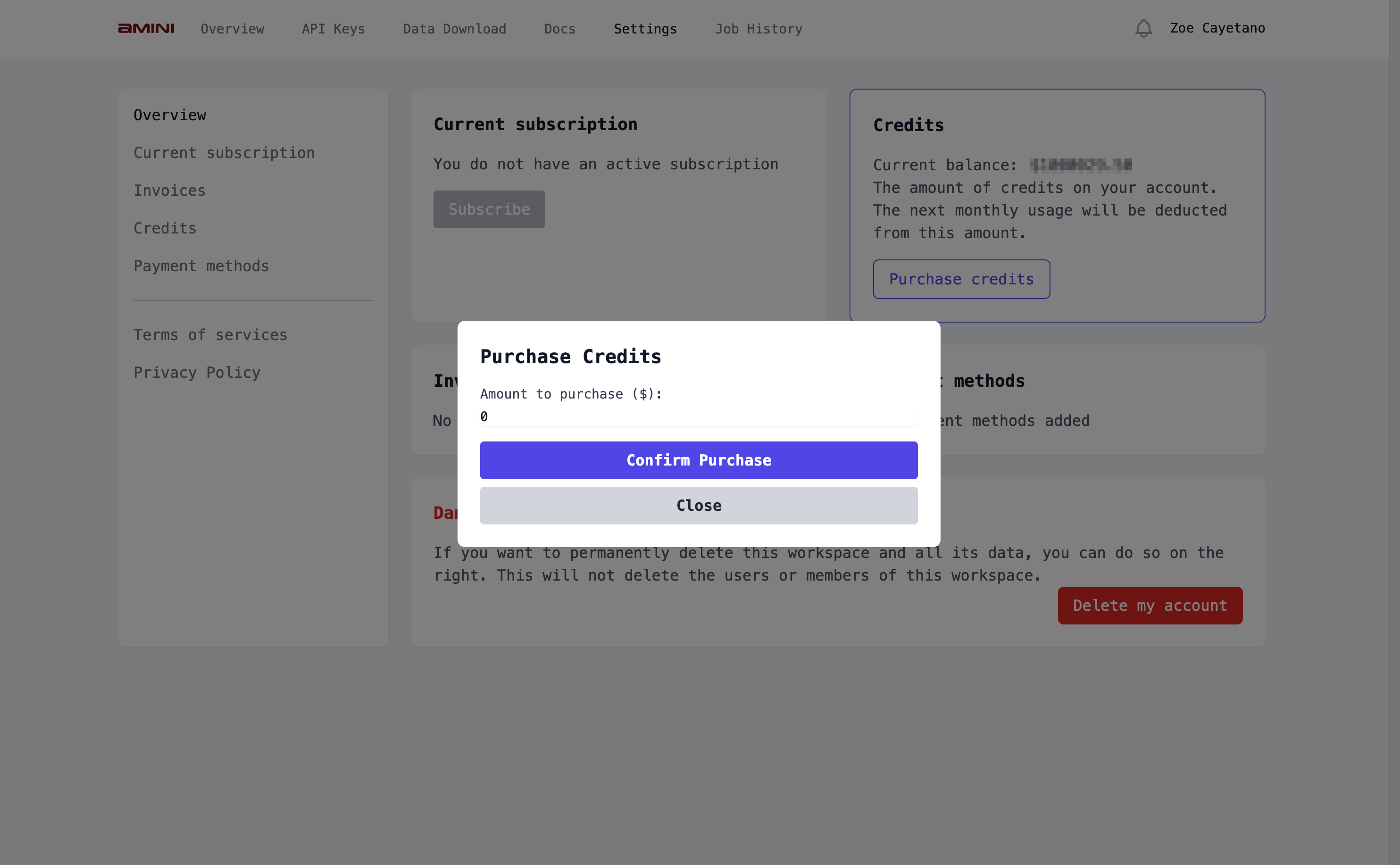
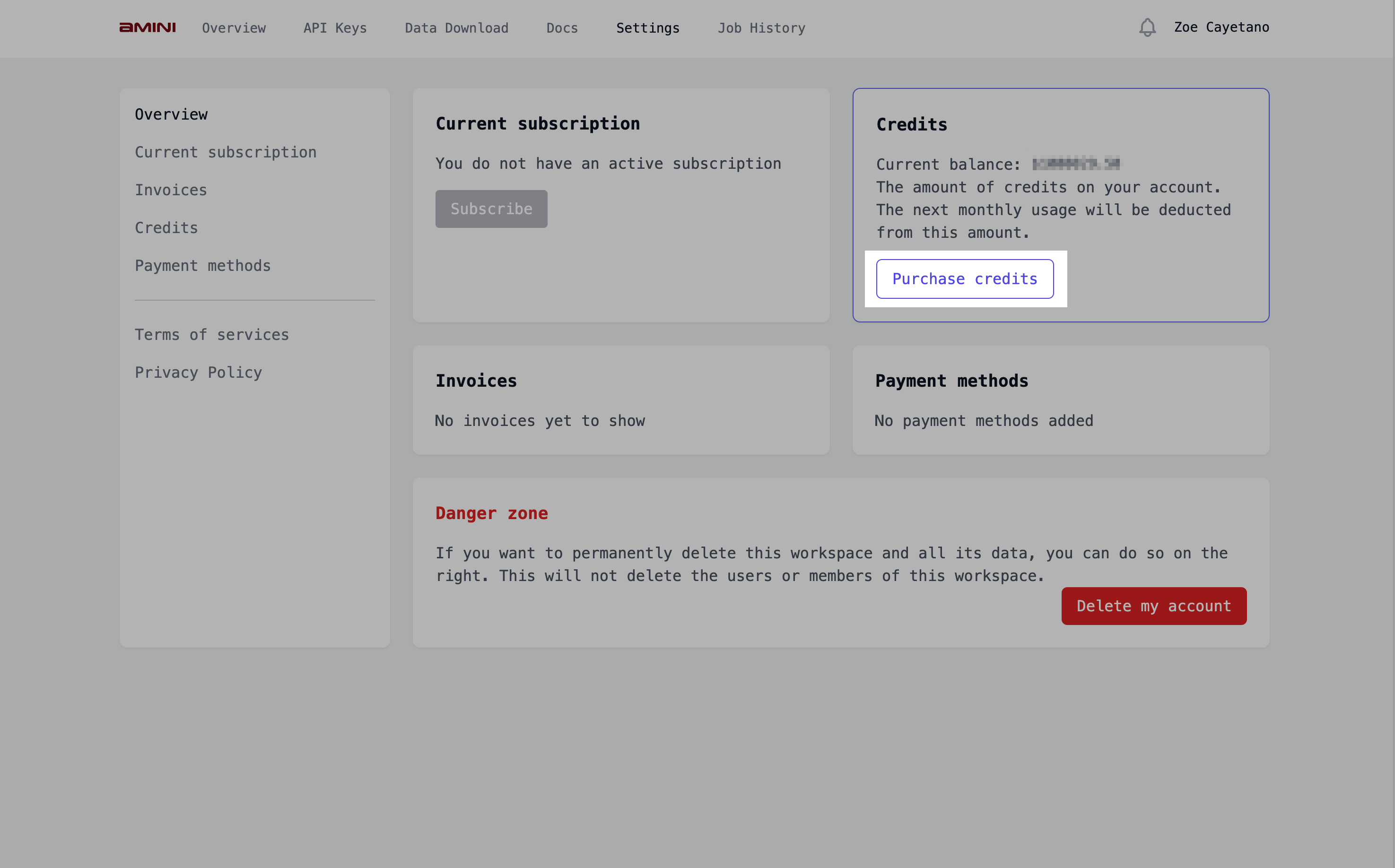
**Step 3:** Click on 'Purchase credits'.
<img src="https://mintcdn.com/aminiai/q8F0l5roisp898sq/images/create-wallet/create-wallet-screen3.png?fit=max&auto=format&n=q8F0l5roisp898sq&q=85&s=cf1116b69d889bd35fce1b51fabde0a6" alt="alt text" width="2950" height="1836" data-path="images/create-wallet/create-wallet-screen3.png" />

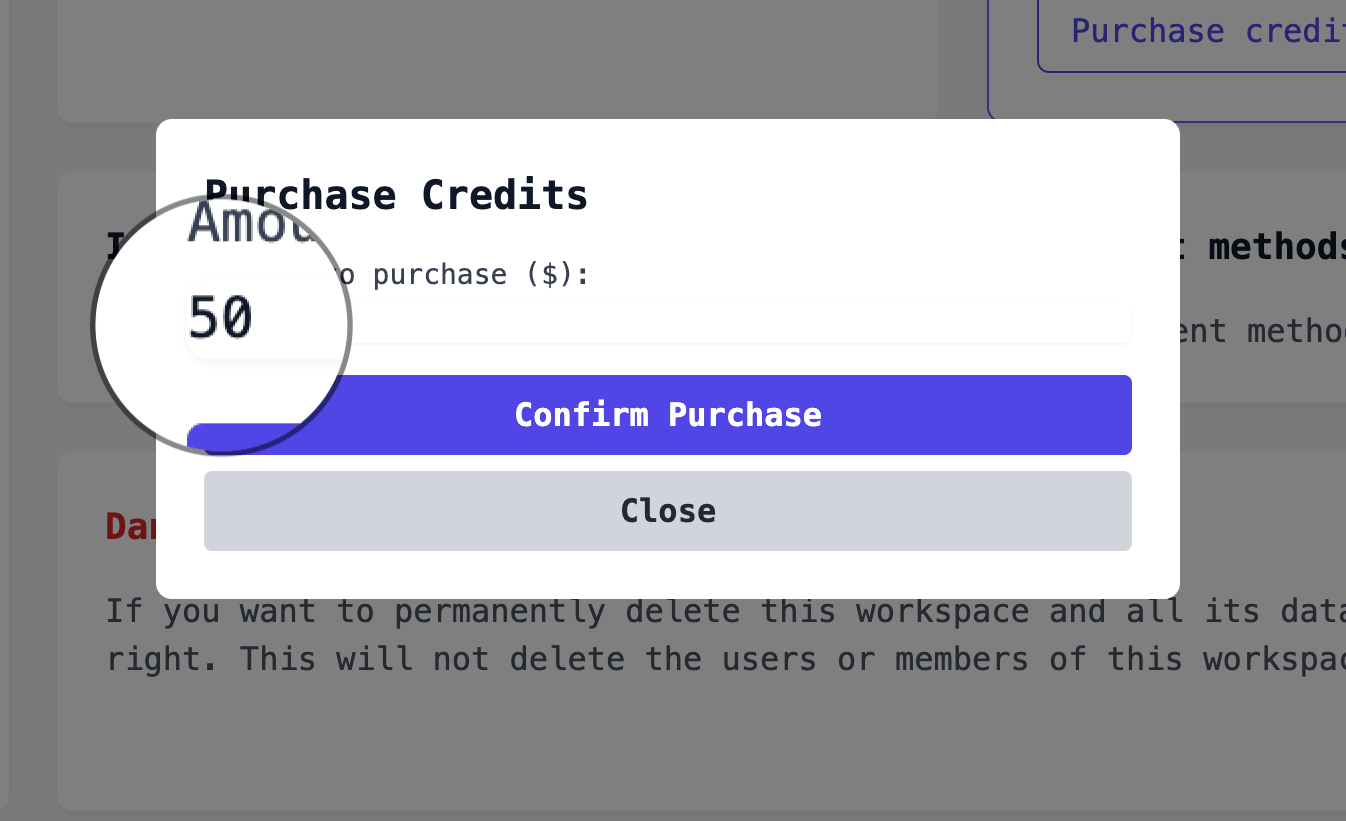
**Step 4:** Add your desired amount.

<img src="https://mintcdn.com/aminiai/q8F0l5roisp898sq/images/create-wallet/create-wallet-screen4.png?fit=max&auto=format&n=q8F0l5roisp898sq&q=85&s=856bc48407d8149041441b5c7f7ab8c1" alt="alt text" width="2968" height="1834" data-path="images/create-wallet/create-wallet-screen4.png" />

<img src="https://mintcdn.com/aminiai/q8F0l5roisp898sq/images/create-wallet/create-wallet-screen5.png?fit=max&auto=format&n=q8F0l5roisp898sq&q=85&s=2f04abb133a2a00e6b5292e6adf1478a" alt="alt text" width="1346" height="821" data-path="images/create-wallet/create-wallet-screen5.png" />

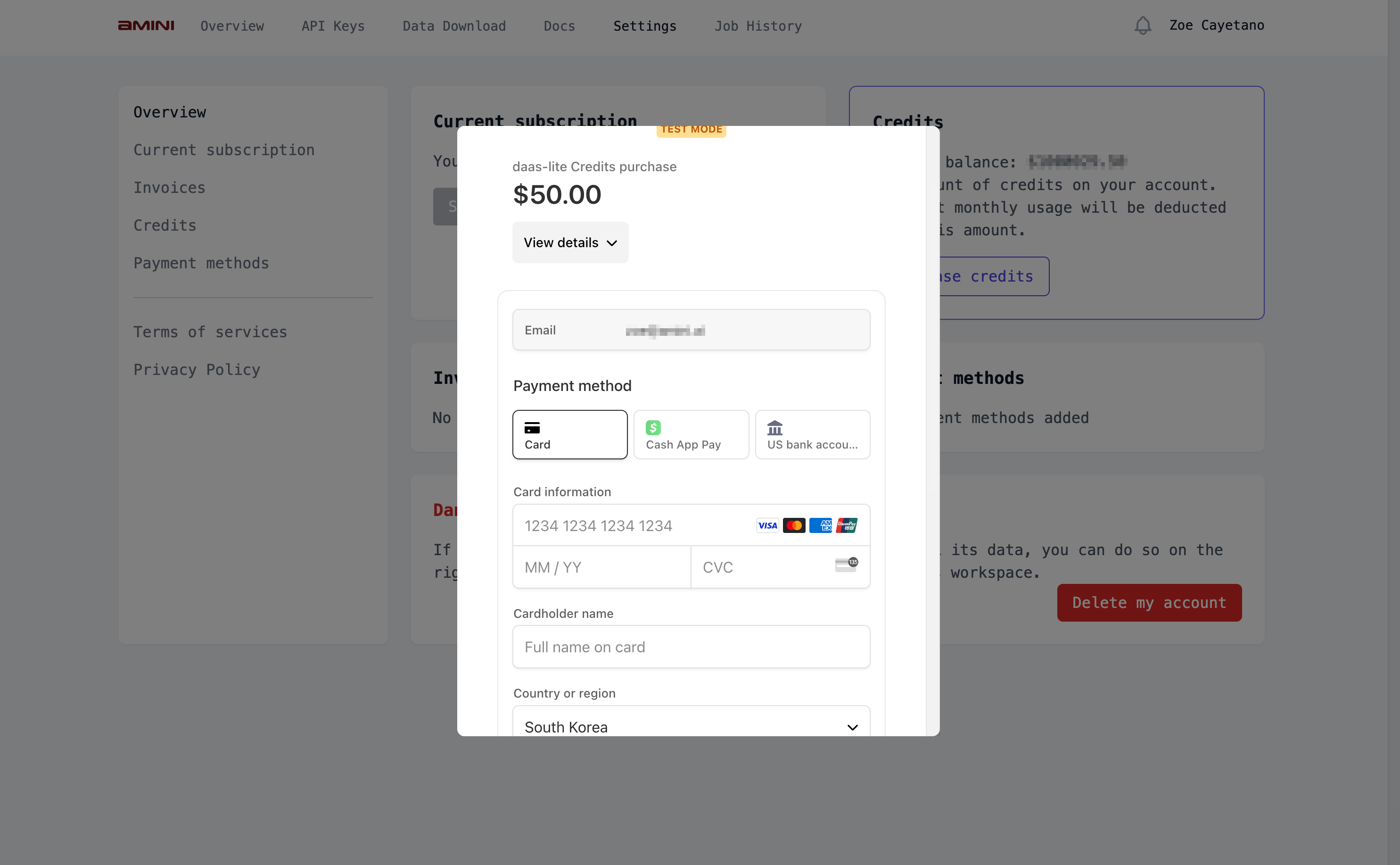
**Step 5:** Enter your payment information.
<img src="https://mintcdn.com/aminiai/q8F0l5roisp898sq/images/create-wallet/create-wallet-screen6.png?fit=max&auto=format&n=q8F0l5roisp898sq&q=85&s=2c4c0fd4a62f59d43b5233f2afe47f86" alt="alt text" width="2970" height="1834" data-path="images/create-wallet/create-wallet-screen6.png" />

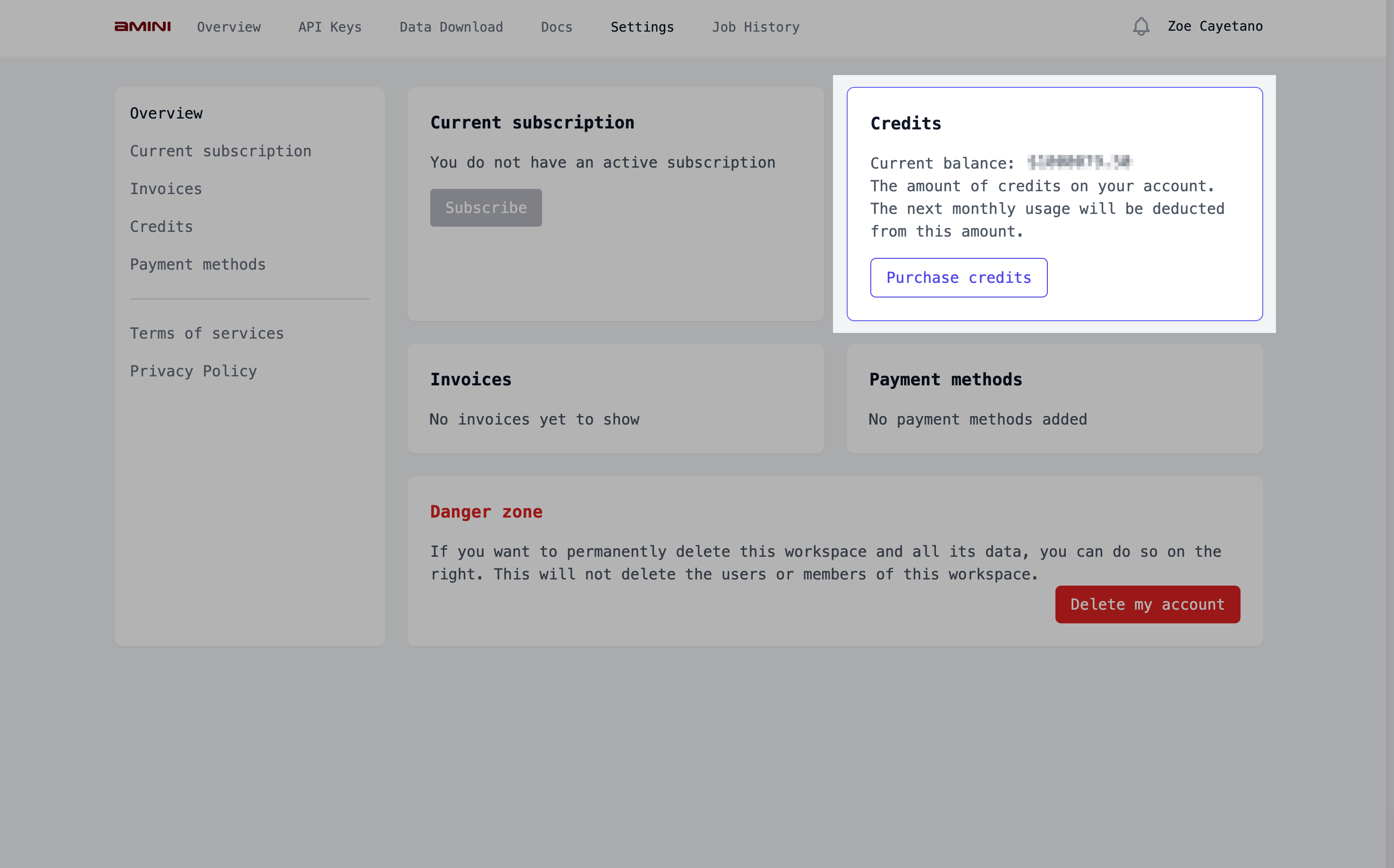
**Step 6:** Check your updated balance.
<img src="https://mintcdn.com/aminiai/q8F0l5roisp898sq/images/create-wallet/create-wallet-screen7.png?fit=max&auto=format&n=q8F0l5roisp898sq&q=85&s=a3ecd7ab205567fb9c5d5c32bd5e66d8" alt="alt text" width="2952" height="1838" data-path="images/create-wallet/create-wallet-screen7.png" />

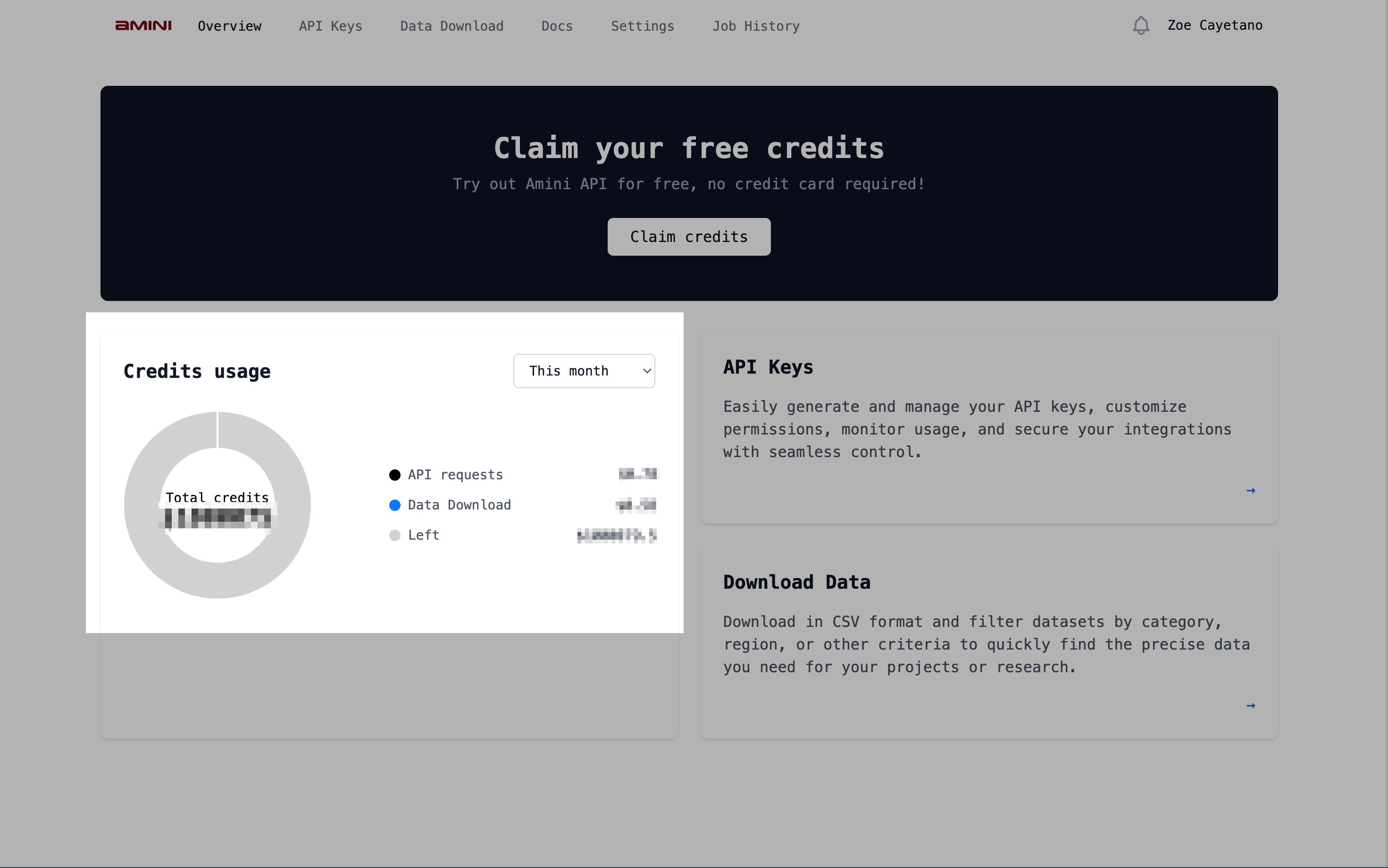
**Step 7:** Go back to the 'Overview' page to check your balance. Once credits have been used, you can check this page to see how much you've spent on API requests or data download. You can also check any remaining credits.
<img src="https://mintcdn.com/aminiai/q8F0l5roisp898sq/images/create-wallet/create-wallet-screen8.png?fit=max&auto=format&n=q8F0l5roisp898sq&q=85&s=27d872bdf60b155db8e81385344c74b3" alt="alt text" width="2942" height="1840" data-path="images/create-wallet/create-wallet-screen8.png" />

To top up, follow the same steps as above.